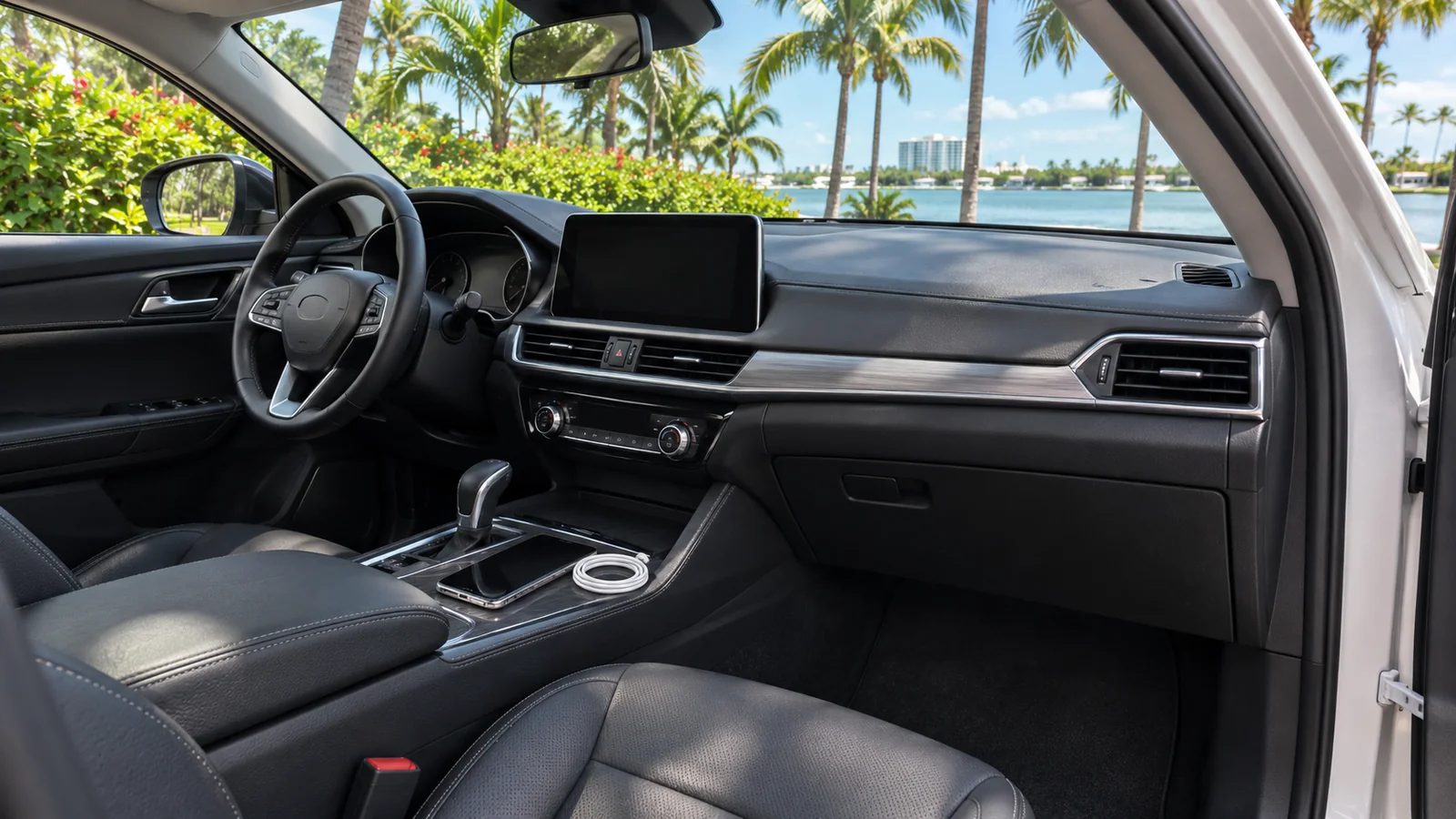
Apple CarPlay can make navigation familiar in an unfamiliar rental, but a USB socket or a premium badge does not confirm that the actual car supports it. Ask about the vehicle you are being offered, bring the right cable, and complete the first connection while parked. The goal is a working route and a simple fallback before the handover ends.
This guide covers getting connected at pickup. The separate personal-data removal checklist covers disconnecting your information before return. Neither step should depend on discovering the right menu while driving.
Confirm the actual connection before choosing the car
When enquiring through the Miami car collection, say that you use an iPhone and want Apple CarPlay. Ask whether it works in the specific proposed vehicle and whether that connection is wired, wireless or both. A model family can contain different equipment and model years; another car’s screen photograph is not proof about yours.
Distinguish CarPlay from ordinary Bluetooth audio. Being able to play music or make a call does not establish that compatible navigation apps will appear on the vehicle display. Ask for the intended setup method rather than asking only whether the car has Bluetooth. If the answer is uncertain, treat connectivity as unconfirmed when comparing vehicles.
Pack for the phone and the car
Check the connector on your phone and ask which port is used for the car’s supported connection. A cable that fits the charging outlet may still be the wrong choice for the intended setup. Pack a suitable known-working cable rather than relying on an unspecified cable being supplied with the rental.
Have your destination address and booking contact available independently of the car display. A saved note with the correct entrance is useful if mobile reception, an app login or the initial connection delays navigation. Keep a charging plan for the phone even when wireless CarPlay is confirmed. Avoid adding unfamiliar adapters at the handover just to force an unsupported feature.
Run one parked setup check
Apple’s connection guidance distinguishes USB and wireless setup and directs users to the vehicle manual for the car’s controls. Follow the supported procedure for that vehicle. Ask the handover contact to identify the correct port or pairing control while you remain safely parked.
Test the task you actually need: enter the destination, check that directions appear where expected, and confirm that audio instructions are audible at a comfortable level. Keep the test short. You do not need to import an entire address book or explore every entertainment feature to establish that navigation works. Read connection prompts and decide what information you are comfortable sharing.
| What happens at pickup | What to clarify | Practical next step |
|---|---|---|
| The phone charges but no CarPlay appears | Correct port and supported connection | Check the car’s instructions before changing settings |
| Bluetooth audio works | Whether this car also supports CarPlay | Confirm the feature separately |
| More than one phone is present | Which device should control navigation | Connect the intended driver’s phone first |
| The vehicle is different from the proposal | Equipment on the replacement car | Repeat the compatibility check |
| Setup is taking too long | A workable navigation alternative | Agree the fallback before departure |
Keep the first destination simple
Use the actual vehicle entrance, not just the name of a hotel or building. A saved business address may point to an entrance unsuitable for the agreed handover or parking arrangement. Check the destination with your host and review the first turn before you join traffic.
If a passenger is helping, decide who manages the phone and who communicates with the rental team. The driver should not be troubleshooting menus, changing pairing permissions or typing addresses on the move. If another attempt is necessary, stop somewhere lawful and safe first. A successful screen connection does not replace checking the route and observing road conditions.
Use a fallback instead of altering the car
If CarPlay is unavailable, ask what supported alternatives the vehicle offers. The answer may involve the car’s own navigation or another arrangement you are comfortable using. Do not install equipment, reset the whole infotainment system or change another user’s settings without agreement. A compatibility problem is a reason to clarify the plan, not to improvise a modification.
Tell the team exactly what you observed: the vehicle, wired or wireless attempt, port used, and the message shown. Do not send screenshots containing private contacts or messages when a short description will do. If connectivity is essential to your selection, resolve the uncertainty before accepting the proposal rather than assuming a feature can be enabled later.
A concise request to send before pickup
“I use an iPhone with [connector]. Please confirm whether the actual offered car supports Apple CarPlay, the connection method and the cable I should bring. I would like to test navigation while parked at handover. If that car changes, please reconfirm the equipment.”
Keep that answer with the vehicle proposal. Before returning, use the linked data-removal guide to review paired devices and saved information. Setup and removal are separate checkpoints: one makes the first journey workable, while the other closes your connection to the car at the end.